Users can subscribe to a publication just like they can subscribe to a discovery, presentation, or tabulation. In effect, the subscription creates a single print of the publication template for a given data selection (if there are slicers), in the chosen document format, for the user who creates the subscription.
It is important to note that your subscription can be scheduled to run on a repeating basis, perhaps once a month or twice a week, but you cannot subscribe to a publication on behalf of other users (you cannot distribute your subscription to others through the subscription settings). Your configuration controls the schedule and distribution target.
Note: Subscriptions are only available with the Enterprise Edition license.
Subscribing to a Publication
To trigger the subscription process, users can click the subscription button from the Status Bar inside Publish or through the Schedules Manager for Pros or Analysts in the Content Explorer. This action opens the Subscribe dialog for the selected publication, where you can specify details of your subscription.
Publish Pro

Publish Lite

Either of the preceding options open the standard subscription dialog (as described in further detail below).
Subscribe dialog
You can work through the tabs in the Subscribe dialog to configure the subscription. This includes naming and describing your subscription, configuring the schedule for the subscription job, and configuring the list of recipients and method of distribution.
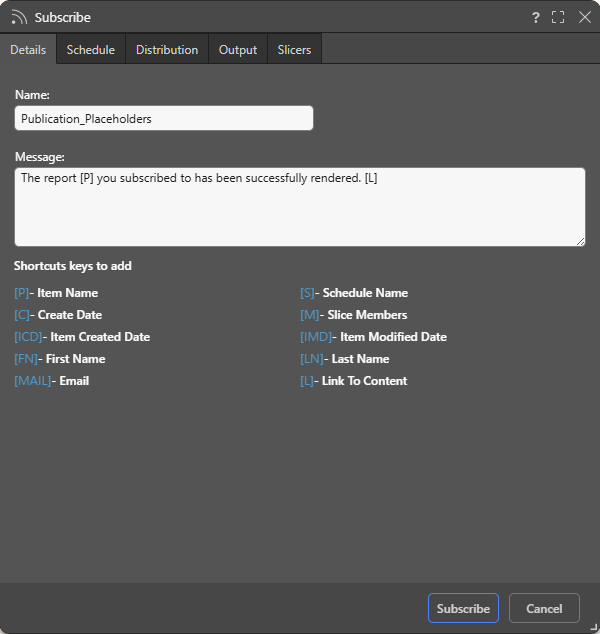
Details
- Name: Supply a name for your subscription. By default, the subscription name is based on the file name.
- Message: Add a message that describes the purpose of the subscription. You may include "Shortcut keys" in your message. These variables will be replaced with an actual value on generation, for example, [L] will incorporate a Link to the content.
Schedule
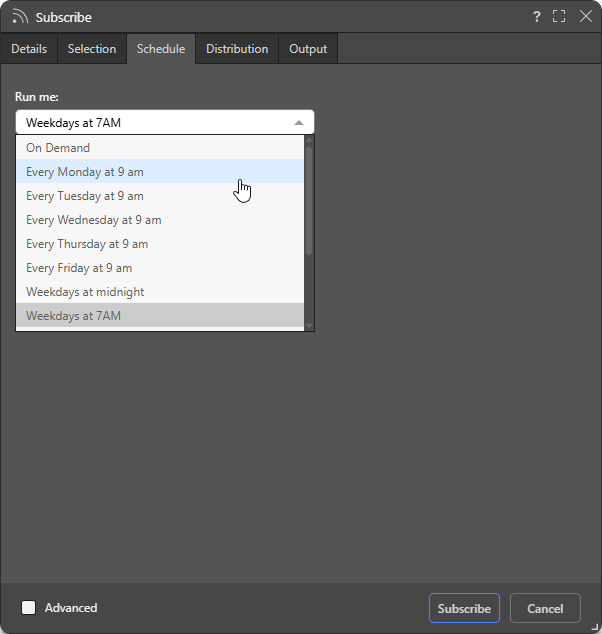
Configure the Schedule for the subscription job:
- On Demand: Select On Demand to trigger the schedule either when the underlying data model is reprocessed or through an API call.
- <Preset>: Select one of the Preset options, such as "Every Monday at 9am," to create a simple, repeat schedule for your subscription.
- Select the Advanced checkbox at the bottom of the dialog to create a custom schedule using the advanced options.
Tip: When you select an "Every..." preset and today's start time has already passed, you can still run the schedule today by selecting Run now in Advanced settings.
Important: For subscriptions, the schedule run time acts as the current date when evaluating date-based filters that use functions. This means that, if your report contains a date slicer where the Last Month function has been selected, the slicer selection will be the last month relative to the schedule execution time and not from a fixed date. For more information, see Dynamic Dates.
Note: Pyramid uses your time zone for the time and date settings by default. If you want to check that it has selected your time zone correctly, or you want to schedule times and dates in a different time zone, use the Timezone option in the Advanced settings.
- Click here to learn more about Advanced Subscriptions
Distribution
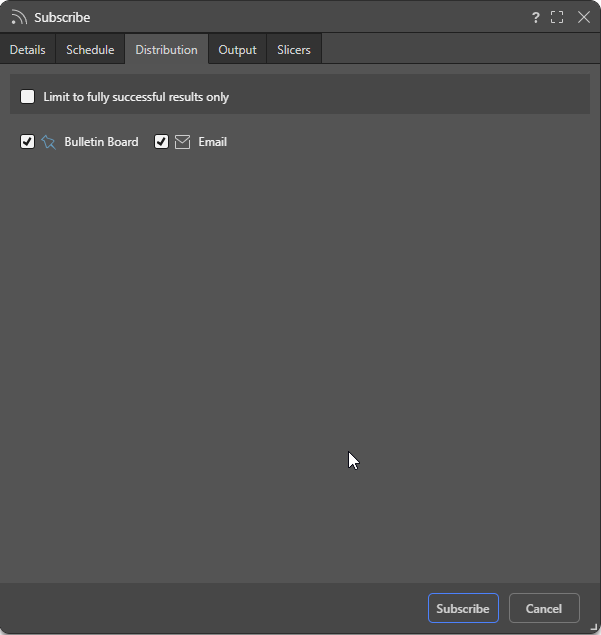
Limit to fully successful results only
Select the Limit to fully successful results only checkbox to prevent automatic distribution where content was not built completely successfully; that is, where a scheduled build "finished with errors" (or is a "Partial Success" in the language of the Task Manager):
- Where this option is not selected (default), the output is built and automatically distributed according to the schedule. The broken item is simply excluded from the output.
- Where this option is selected, the output is built with the missing broken item but it is not automatically distributed. You can still view the built output in the Schedule Manager.
Basic Distribution Options
Use the checkboxes to subscribe as yourself:
- Bulletin Board: Receive subscribed output through the Pyramid Bulletin Board.
- Email: Receive subscribed output by email.
Note: You can only configure the Basic Distribution options for a publication subscription. Advanced options are available for other subscription types and when using Scheduled Publishing. For more information, see Scheduled Publishing in Publish Pro.
Output
From the Output tab, choose the required output type, then set your preferences for that selected output. The options on this tab are typically the same in the Print and Export dialog.
Note: There is no option to spool the print job, because this is not relevant for scheduled subscriptions.
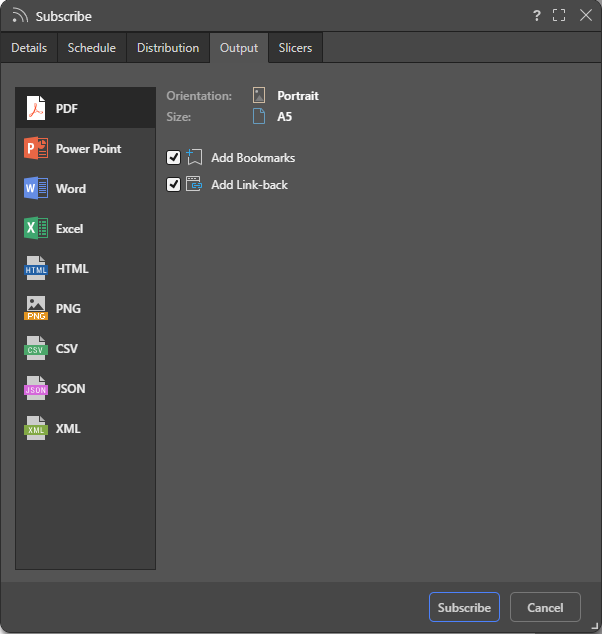
Select the required output format and print settings for the publication:
- PDF: You can include PDF bookmarks and link-back to the "live" version of the visuals.
- Power Point: You can set the image quality and add a link-back.
- Word: You can set the image quality and add a link-back.
- Excel: You can show or hide the title and breadcrumbs for visuals, freeze worksheet panes, ignore styling, merge common cells, and other options including adding a link-back.
- HTML: You can include a link-back.
- PNG: You can set the image quality.
- CSV, JSON, or XML: These export formats provide the extra option to Remove value based filters. Where a value-based filter has been applied to data, select this option to export the entire dataset, rather than only the filtered values. For the CSV export format, an option is provided to select the character to be used as a delimiter when exporting the file.
Slicers
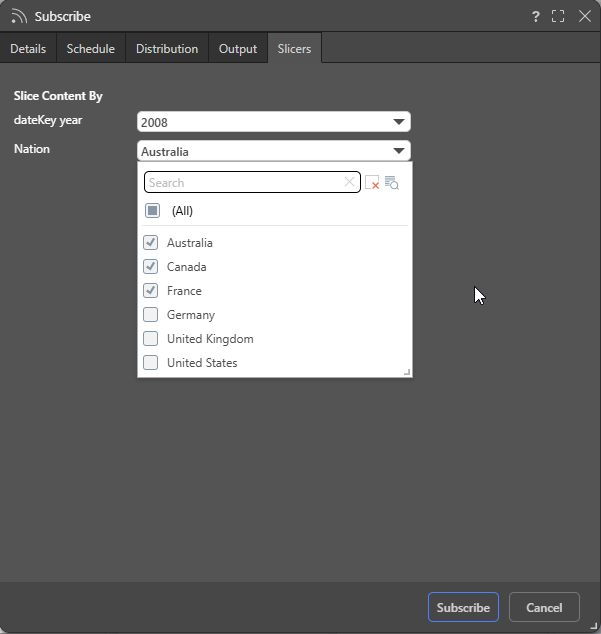
For publications, you can click the Slicer tab and select the options from each of the slicers that you'd like to apply to the publication when it is built.
For each slicer, you must select the value or values that will apply when the publication is generated. For example, if you are creating a document for your Mexican team, choose Mexico from the Countries slicer to filter the sales visual to show Mexican data only. For a broader regional report, if your Countries dropdown list allows multiple selections, you can select all South American countries using the multi-select checkboxes instead.
Important: When multiple options are selected from a slicer, the affected content item is filtered to include all of the selected values combined. This means, if you select all South American countries as described above, the sales visual will display data for all the selected countries.
- Click here for details of the single and multi-select slicer options
Managing Subscriptions
Subscriptions can be edited or deleted from the Content Manager. Admins can also edit, remove, and rerun subscriptions from the Admin Console.
- Click here to manage Subscriptions from the Content Manager (for Analysts).
- Click here to manage Subscriptions from the Admin Console.
Related information
Subscriptions in the Content Manager
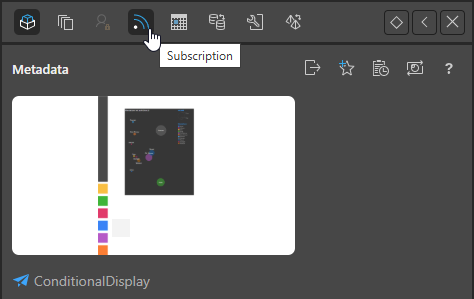
You can create and manage your publication subscriptions from the Subscription option in the Actions Panel of the Content Explorer:
Data Source Authentication
If you’re using Windows Authentication or SAP Logon Tickets to connect to your data source, you may be prompted to enter Authentication credentials when saving your changes.
- Click here to learn more about Data Source Authentication.